
Appearance
Writing Code for Your Waterfuser Application
The way you structure and write your calculation code depends on the layout you've chosen for your tab. Each layout type has different requirements and patterns for organizing your logic.
Tab Hierarchy
All Waterfuser layouts support a flexible hierarchy to organize your inputs and outputs. Understanding this structure helps you create well-organized, user-friendly applications.
Hierarchy Levels
Application
 ├─ Tab 1
 │   ├─ Section
 │   │   ├─ Subsection
 │   │   │   ├─ Subsubsection (can nest deeper)
 │   │   │   │   ├─ Field
 │   │   │   │   └─ Field
 │   │   │   └─ Field
 │   │   └─ Field
 │   └─ Section
 │       └─ Field
 └─ Tab 2
     └─ Section
         └─ Field
Structure Breakdown
| Level | Description | Code Representation |
|---|---|---|
| Application | Top-level container | EquationWebClientSettings |
| Tab | Main navigation sections | EquationWebClientTabSettings (in tabs list) |
| Section | Primary grouping of related fields | Dependent on tab type |
| Subsection | Secondary grouping within sections | Dependent on tab type |
| Subsubsection... | Further nesting as needed (unlimited depth) | Dependent on tab type |
| Field | Individual input or output | Pydantic Field definition |
Best Practices for Hierarchy
- Keep it shallow when possible: Aim for 2-3 levels deep. Deeper nesting can make the UI harder to navigate
- Group logically: Put related fields together in sections
- Use meaningful names: Section and subsection names should clearly indicate what they contain
- Balance sections: Avoid having one huge section and several tiny ones
- Consider user workflow: Organize fields in the order users will fill them out
Naming Conventions
- Sections: Use descriptive nouns (e.g.,
InfluentCharacteristics,ProcessResults) - Subsections: More specific groupings (e.g.,
FlowParameters,LoadParameters) - Fields: Clear, concise descriptions in the
Field()descriptor - Classes: Use PascalCase for model names, descriptive and domain-specific
Overview
Different layouts require different approaches:
- Split Layout: Traditional form-based calculations with clear input/output separation (
layout_type="split") - Combined Layout: Modular calculations with flexible organization (
layout_type="combined"orlayout_type="stacked") - Parametric Layout: Integration with 3D visualization tools (documentation coming soon)
Choose the section below that matches your chosen layout.
Split Layout
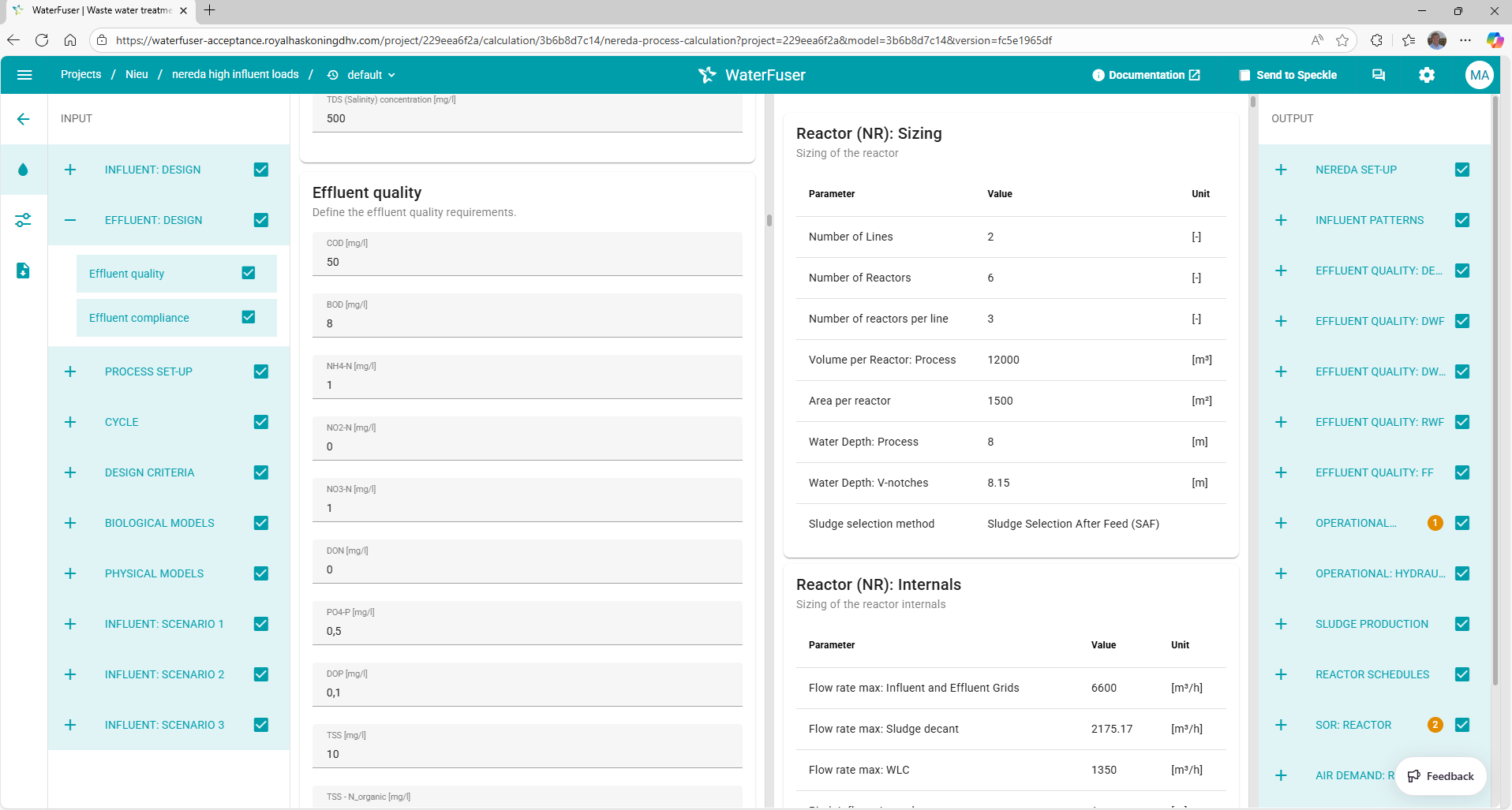
The split layout is ideal for traditional calculation workflows with a clear separation between inputs and outputs.
Code Structure
For split layouts, you typically create a single function that:
- Takes all inputs as parameters
- Performs all calculations
- Returns all outputs together
Hierarchy definition
Nested BaseModels define tab hierarchy. Each level of nesting corresponds with a level in the hierarchy.
Pydantic's field title and field description attributes are used for describing sections and subsections. Utility classes are provided in haskoning_equation.style to adjust styling of individual fields.
Practical Example
Here's how the hierarchy translates to code:
python
from pydantic import BaseModel, Field

# Subsection level
class FlowParameters(BaseModel):
    """Subsection: Flow-related parameters"""
    design_flow: float = Field(title="Design flow rate", description="Design flow rate to the plant. Is used for calculation of the effluent quality.")
    peak_factor: float = Field(title="Peak factor", ge=1.0, le=3.0)

class LoadParameters(BaseModel):
    """Subsection: Load-related parameters"""
    cod: float = Field(title="COD concentration")
    tss: float = Field(title="TSS concentration")

# Section level
class InfluentCharacteristics(BaseModel):
    """Section: All influent parameters"""
    flow: FlowParameters = Field(title="Flow Input", description="This section contains inputs related to flow characteristics")  # Subsection
    loads: LoadParameters = Field(title="Load input", description="This section contains the loads on the plant.") # Subsection

class TreatmentRequirements(BaseModel):
    """Section: Treatment criteria"""
    removal_efficiency: float = Field(title="Required removal")
    effluent_standard: str = Field(title="Discharge standard")

# Tab level - combines all sections
class ProcessDesignInputs(BaseModel):
    """Tab: Complete input structure"""
    influent: InfluentCharacteristics = Field(title="Influent", description="Influent characteristics")  # Section
    treatment: TreatmentRequirements = Field(title="Treatment", description="Treatment parameters")   # Section

# This creates:
# Tab
#  ├─ Influent (Section)
#  │   ├─ Flow (Subsection)
#  │   │   ├─ Design flow (Field)
#  │   │   └─ Peak factor (Field)
#  │   └─ Loads (Subsection)
#  │       ├─ COD (Field)
#  │       └─ TSS (Field)
#  └─ Treatment (Section)
#      ├─ Removal efficiency (Field)
#      └─ Effluent standard (Field)
For more information on styling for individual fields, refer to UI Styling
UI Representation
In the Waterfuser interface, this hierarchy becomes:
┌─ Process Design Tab ─────────────────────┐
│                                           │
│  ▼ Influent                      (Section) │
│    ▼ Flow                    (Subsection) │
│      Design flow: [____] m³/h     (Field) │
│      Peak factor: [____]          (Field) │
│                                           │
│    ▼ Loads                   (Subsection) │
│      COD: [____] mg/L             (Field) │
│      TSS: [____] mg/L             (Field) │
│                                           │
│    Temperature: [____] °C         (Field) │
│                                           │
│  ▼ Treatment                     (Section) │
│    Removal efficiency: [____] %   (Field) │
│    Effluent standard: [____]      (Field) │
│                                           │
│  Project name: [____]             (Field) │
└───────────────────────────────────────────┘
Combined Layout
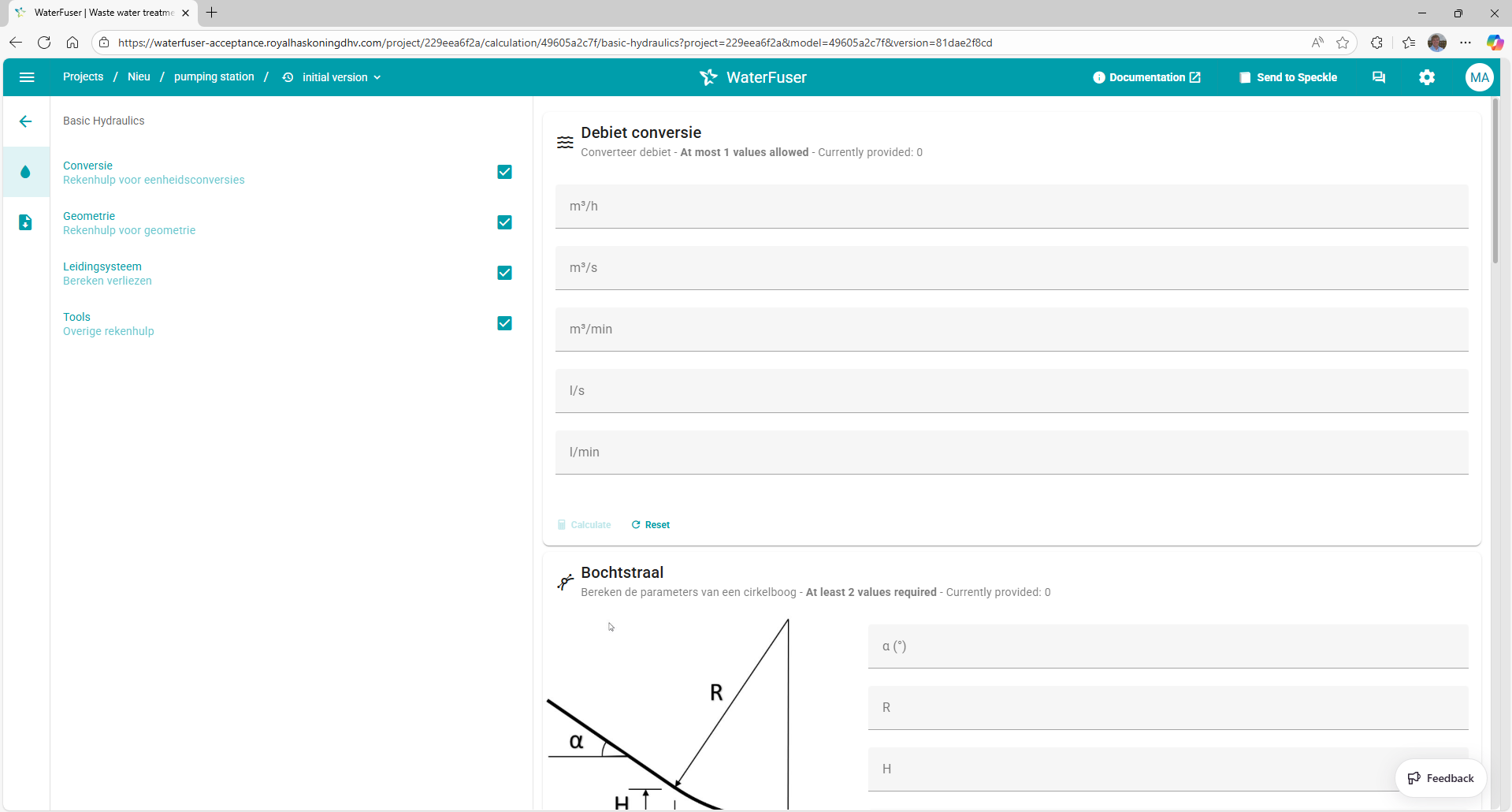
The combined layout is perfect for modular applications where different calculation groups operate independently.
Code Structure
For combined layouts, you create multiple functions, each corresponding to a card:
- Each function handles one specific calculation or card
- Functions can have different input requirements
- Only affected cards recalculate when inputs change
Organization Based on Folder Structure
The hierarchy for combined layout is determined by your api's route structure. If you autogenerate the endpoints, the following folder structure will lead to a nested api route structure.
your_project/
├── api/
│   ├── geometry.py          → Creates "Geometry" Section
│   ├── hydraulics.py        → Creates "Hydraulics" Section
│   └── materials/           → Creates "Materials" Section
│       ├── concrete.py      → Creates "Concrete" Subsection
│ └── steel.py → Creates "Steel" Subsection- Folders = Sections
- Subfolders = Subsections
- Python modules (files) = Section/Subsection containers
- Functions = Individual Cards
Utility classes from haskoning_equation allow you to style sections and cards.
Basic Example
Here's a complete example following the pattern from the screenshot:
File: api/geometry.py
python
from haskoning_equation.style import SectionStyle
from ..geometry.triangle import calculate_triangle, TriangleInput, TriangleOutput
from ..geometry.circle_segment import calculate_circle_segment, CircleSegmentInput, CircleSegmentOutput

# Define the section style for this module
SECTION_STYLE = SectionStyle(
    title="Geometry",
    description="Calculation tool for geometry"
)

def triangle(input: Triangle) -> Triangle:
    """Calculate triangle properties"""
    angle, opposite, adjacent, hypotenuse = calculate_triangle(**input.model_dump(exclude_unset=True))
    return Triangle(
        angle=angle,
        opposite=opposite,
        adjacent=adjacent,
        hypotenuse=hypotenuse
    )

def circle_segment(input: CircleSegment) -> CircleSegment:
    """Calculate circle segment properties"""
    angle, r, h, l = calculate_circle_segment(**input.model_dump(exclude_unset=True))
    return CircleSegment(angle=angle, r=r, h=h, l=l)
File: geometry/triangle.py (business logic)
python
import math
from typing_extensions import Self
from pydantic import BaseModel, Field, model_validator
from ..validators import check_minimum_number_of_inputs
from haskoning_equation.style import apply_style, CardStyle


def calculate_triangle(angle: float = 0, opposite: float = 0, adjacent: float = 0, hypotenuse: float = 0):
    ... # This is where the actual calculation logic is

@apply_style(
    style=CardStyle(
        title="Triangle",
        subtitle="Calculate sides or angle of a right triangle",
        icon="mdi-angle-acute",
        min_inputs=2,
        image_url="/haskoning_basic_hydraulics/static/images/driehoek.jpg",
    )
)
class Triangle(BaseModel):
    angle: float | None = Field(
        default=None, title="α (°)", description="The angle of the triangle in degrees."
    )
    opposite: float | None = Field(
        default=None, title="A", description="The length of the side opposite to the angle."
    )
    adjacent: float | None = Field(
        default=None,
        title="B",
        description="The length of the side adjacent to the angle.",
    )
    hypotenuse: float | None = Field(
        default=None, title="C", description="The length of the hypotenuse."
    )
File: geometry/circle_segment.py (business logic)
python
from pydantic import BaseModel, Field

class CircleSegment(BaseModel):
    """Input parameters for circle segment"""
    angle: float | None = Field(default=None, title="Central angle", unit="deg")
    r: float | None = Field(default=None, title="Radius", unit="m")
    h: float | None = Field(default=None, title="Height", unit="m")
    l: float | None = Field(default=None, title="Chord length", unit="m")

def calculate_circle_segment(
    angle: float | None = None,
    r: float | None = None,
    h: float | None = None,
    l: float | None = None
) -> tuple[float, float, float, float]:
    """Core circle segment calculation logic"""
    # Calculation logic here
    return angle, r, h, l
How This Creates the UI
The above code structure automatically creates this hierarchy:
Application
 └─ Geometry Section (from api/geometry.py + SECTION_STYLE)
     ├─ Triangle Card (from triangle() function)
     │   ├─ Inputs: angle, opposite, adjacent, hypotenuse
     │   └─ Outputs: angle, opposite, adjacent, hypotenuse
     └─ Circle Segment Card (from circle_segment() function)
         ├─ Inputs: angle, r, h, l
         └─ Outputs: angle, r, h, l
Key Pattern Elements
- Separation of concerns: API layer (
api/geometry.py) handles routing, business logic layer (geometry/) handles calculations - Section styling: Use
SECTION_STYLEat module level to define section appearance - Function = Card: Each function in the API file becomes a separate card
- Model reuse: Input/Output models are defined with the business logic and imported
- Type hints: Clear type hints enable automatic validation and documentation
Best Practices for Combined Layout
- Keep cards focused: Each function should handle one logical calculation group
- Use card styling: Apply
CardStyleto organize and visually distinguish cards
Parametric Layout
Coming soon
Documentation for the parametric layout code structure is coming soon. This layout is used for 3D visualization and parametric modeling with tools like ShapeDiver and Speckle.
Next Steps
After writing your code:
- Add validation — Implement business logic validation
- Style your UI — Customize appearance with charts, tables, and styling
- Handle units — Configure unit systems and conversions
Additional Resources
- Generate Endpoints — Learn more about generating api endpoints
- Application Structure — Understand the overall configuration
- Choose Layout — Map your implementation approach to the tab layout